

QuadDrive Firmware Update
Update QuadDrive's firmware from your browser at update.raidendigit.com.
What's new in V1.2
- Fan stop
- An option to turn the LEDs off
- A quieter, noise-reduction fan curve
- Fan control: set a custom fan curve for quieter operation or stronger cooling. See Fan Control.
Before you start
You need:
- A Windows, macOS or Linux computer. Use a desktop or laptop, not a phone or tablet.
- Google Chrome or Microsoft Edge
- A USB-C cable that supports data
- macOS only: the serial driver, installed first
- Linux only: serial port access (see Linux)
Remove all SSDs
Important
Remove all SSDs from QuadDrive before you update. This avoids conflicts while the firmware is being written.
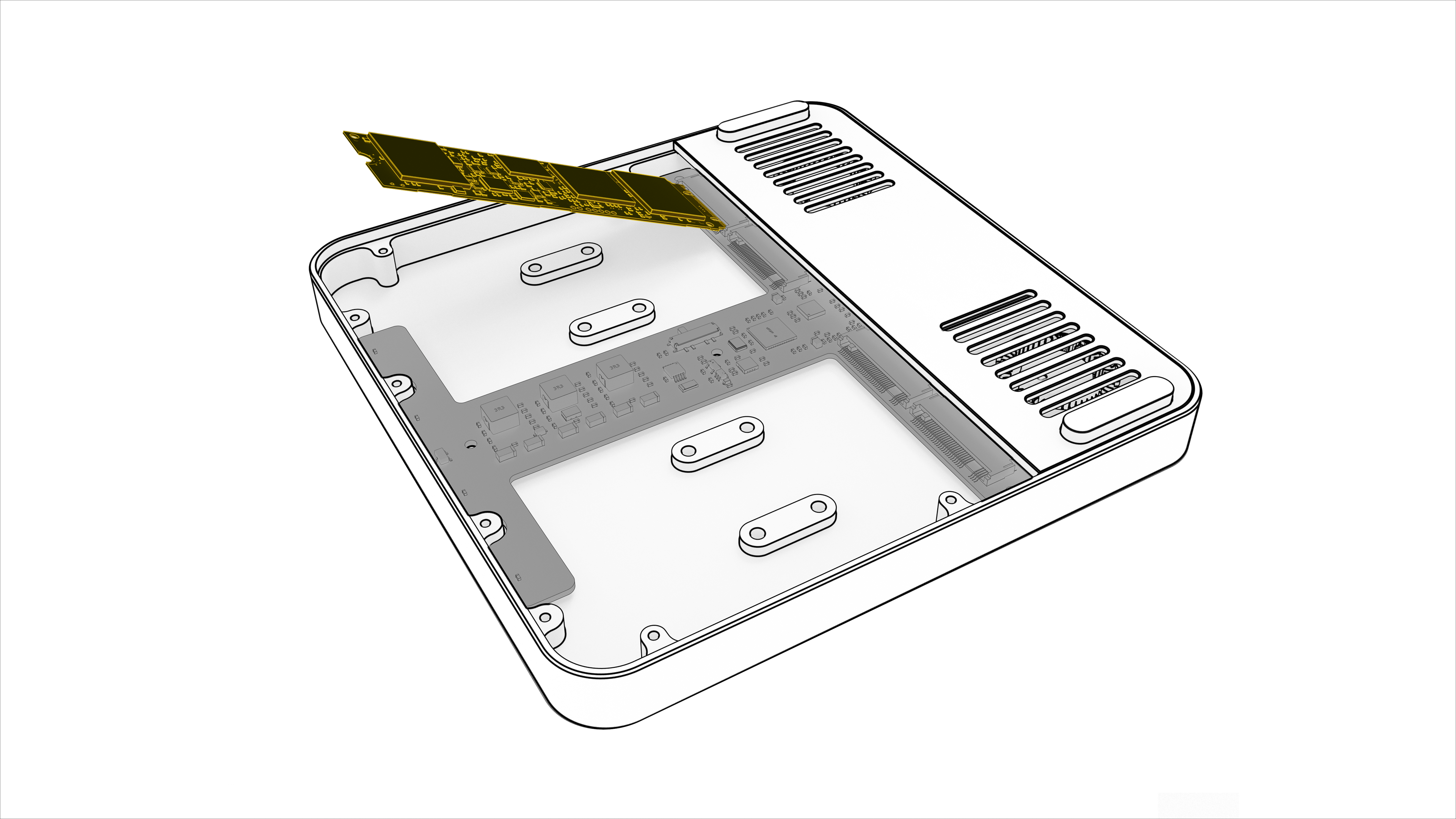
Set the DIP switch (for custom fan curves)
To use custom fan curves after the update, set the internal DIP switch to the middle position. See Fan Control for details.
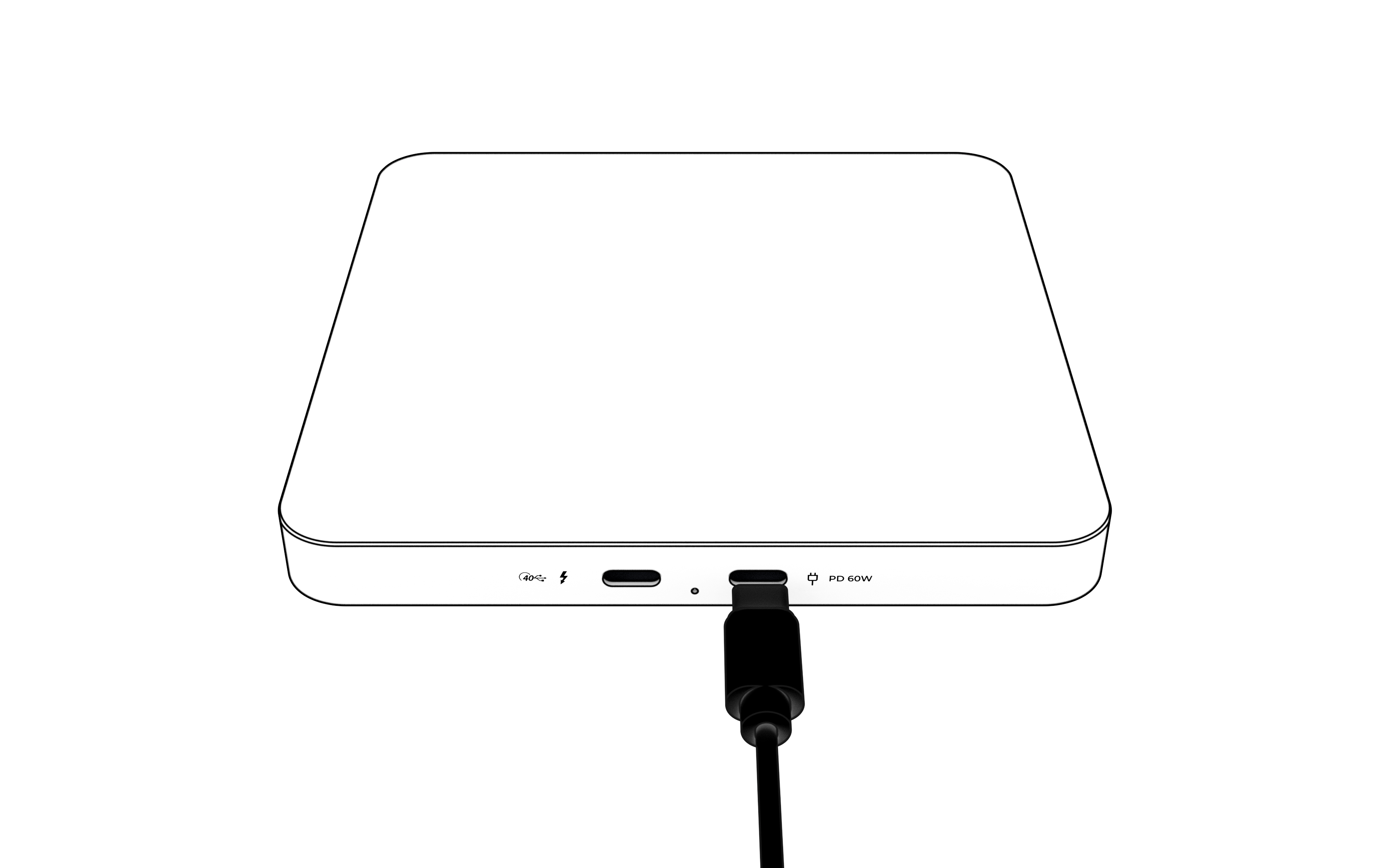
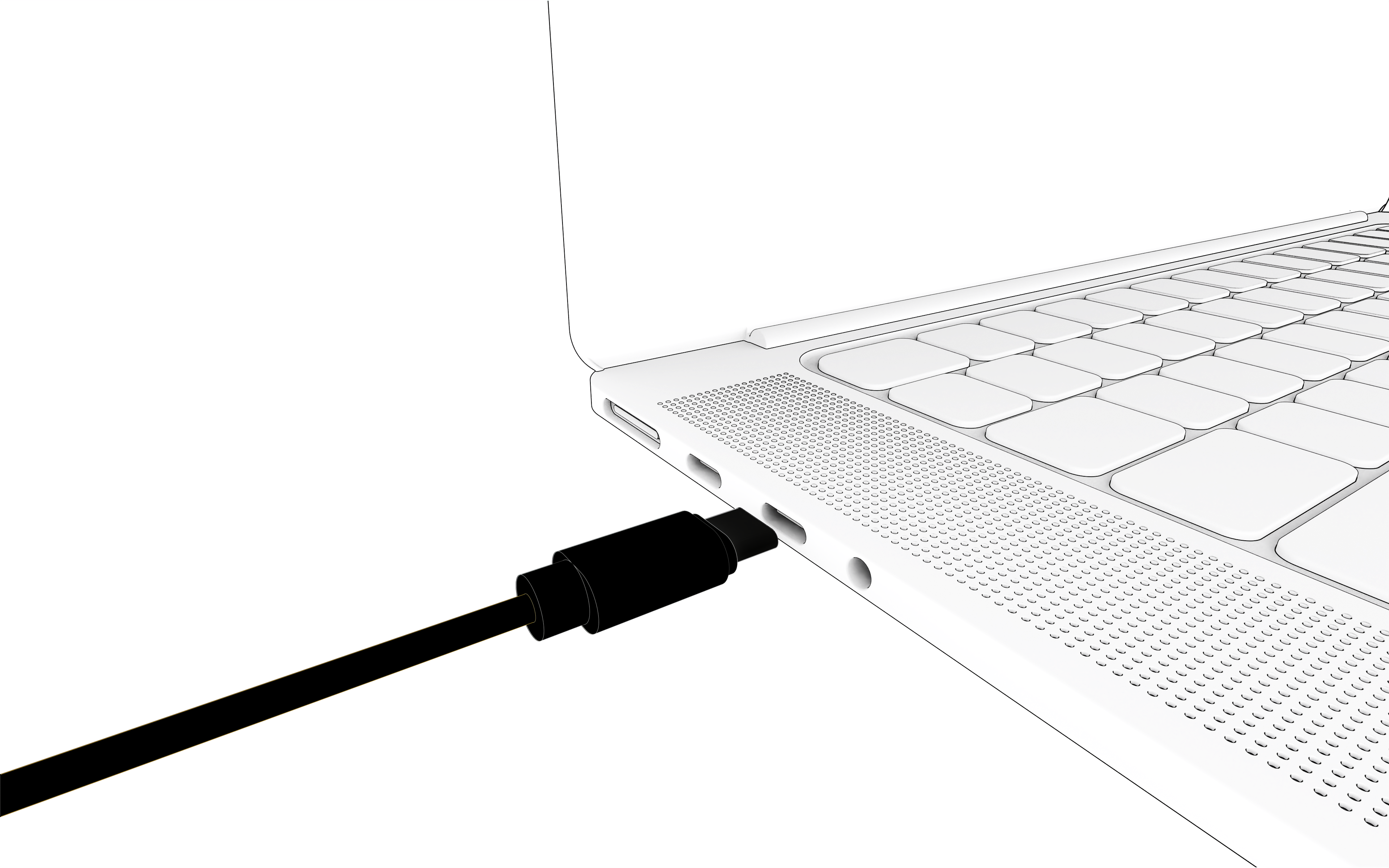
Connect QuadDrive
Connect QuadDrive's power port directly to your computer with a USB-C cable. You don't need the power adapter.
Update
- Open update.raidendigit.com in Chrome or Edge.
- When the browser asks to connect to a serial port, select the device and click Connect.
- Follow the on-screen instructions to start the update.
- Wait until the updater says the update is complete, then disconnect the cable.
- Reinstall your SSDs.
Don't disconnect during the update
Unplugging the cable or interrupting the connection mid-update can cause the update to fail.
If something goes wrong
If the updater doesn't find QuadDrive or the update stops, see Troubleshooting.