

QuadDrive Fan Control
With the latest firmware, you can set QuadDrive's fan curve in the web updater at update.raidendigit.com. Run it quieter, or cool harder under sustained load.
DIP switch
The internal DIP switch selects how the fan is controlled. To use the fan curve you set in the updater, set it to the middle position.
| Position | Fan behavior |
|---|---|
| Top | Custom, with power sensing disabled |
| Middle | Custom fan curve |
| Down | Default fan curve |
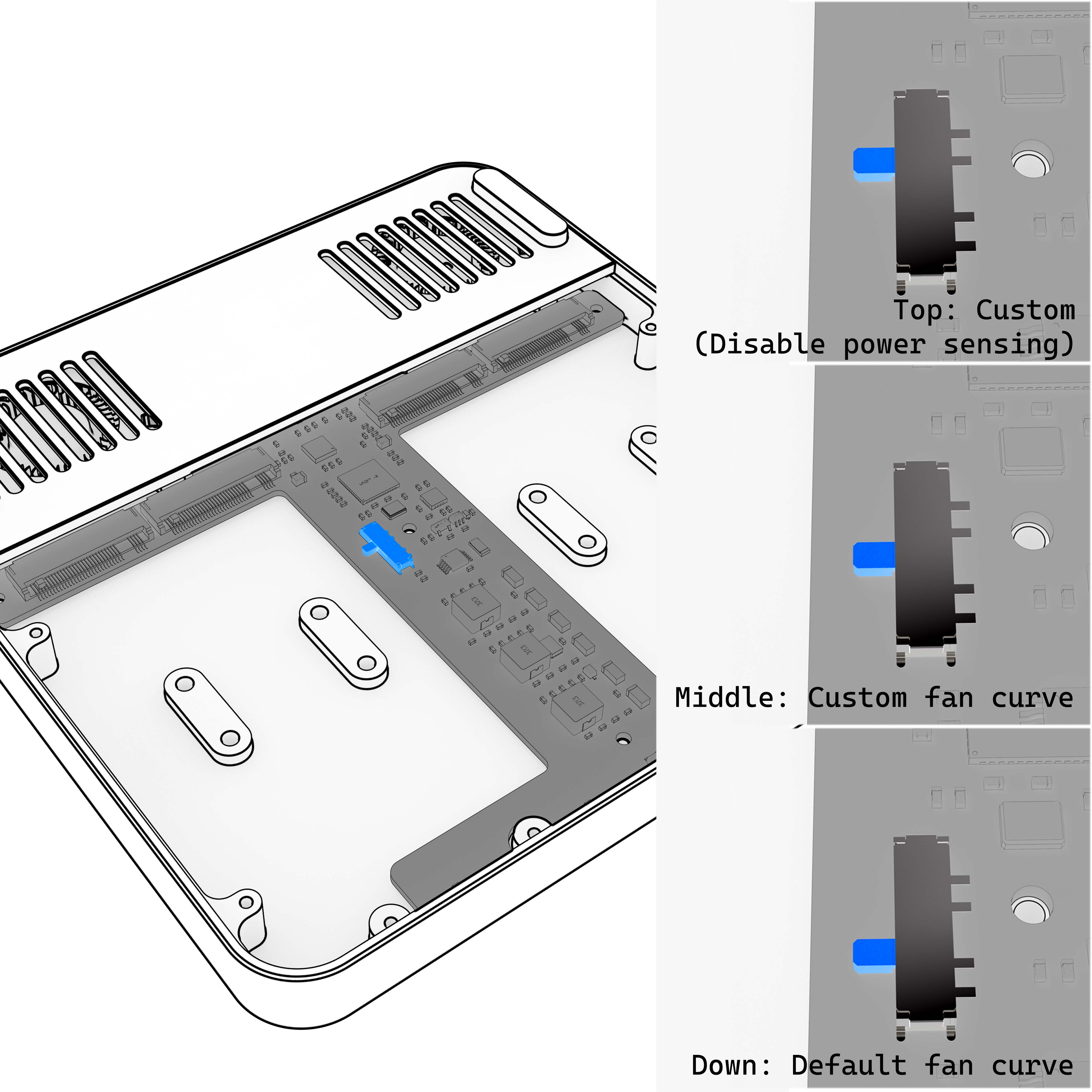
Power-cycle to apply
After you change the DIP switch or the fan settings, power QuadDrive off once so all changes take effect.
How the fan curve works
QuadDrive controls its fan based on power draw, not SSD temperature.
The "Power (W)" axis is not temperature
In the fan curve editor, the horizontal axis is Power (W): the estimated power draw of a single SSD. Internally:
- Current sensors on the PCB measure power draw
- The firmware knows how many drives are installed and which side of the board they are on
- From these, QuadDrive estimates the power draw of each drive
Your curve maps that per-drive power to a fan speed:
Fan speed (%) = f(estimated per-drive power in W)
Why power instead of temperature?
- No temperature probe is needed on each SSD
- It works the same way across different SSD models
- It reacts predictably to real workload changes
The PCB does have a built-in temperature sensor. It is used for system-level monitoring, not to drive the fan.